 Open
OpenAnalytics, IP and network map
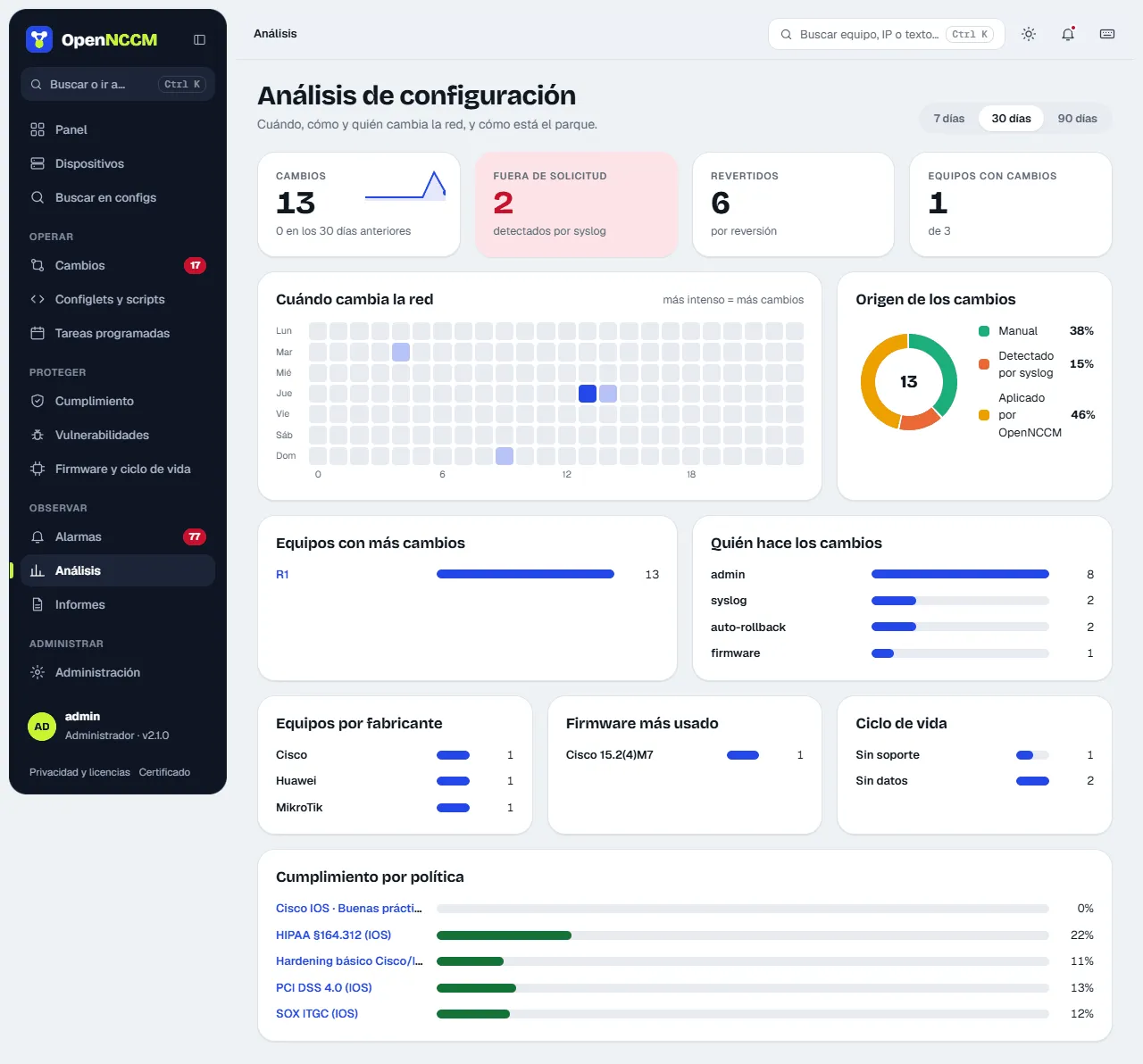
Spot patterns: which devices change most, who changes them, through which channel, which firmware versions dominate and how compliance and lifecycle look.
Video course · OpenNCCM from scratch · in Spanish
Análisis
Lesson 8.2 of 30 · Module 8 · Monitor
See the full courseChoose the period (7, 30 or 90 days). The page shows:
- Indicators: changes in the period with a sparkline and the comparison with the previous period, changes outside a request (detected by syslog), reverted changes and devices with changes.
- When the network changes: heat map by day of week and hour (darker = more changes). Useful to spot changes outside working hours.
- Source of changes: a ring with the total in the center and the percentage of each source (scheduled, syslog, manual or applied by OpenNCCM).
- Bars for devices with most changes, who makes the changes, devices by vendor, most used firmware, lifecycle and compliance by policy.
Hovering over a bar or cell shows its exact value. Device and policy names are links.
IP and VLAN
Section titled “IP and VLAN”IP and VLAN (sidebar) brings together the IP addresses and VLANs configured on every device, read from their latest saved configuration (nothing is run on the devices). It recognizes Cisco and similar, Huawei, EdgeSwitch, VOSS, FortiGate, Junos, VyOS/EdgeRouter, MikroTik, EXOS and airOS; IPv4 only. It warns about IPs configured in more than one place (on two devices or two interfaces) and VLANs with different names depending on the device. You can filter by group or text and export to CSV.
Network map
Section titled “Network map”Network map (sidebar) draws the devices and the links between them, with the port at each end. Links come from the LLDP or CDP neighbors each device announces, read on every backup with a read-only command (for example show cdp neighbors detail on Cisco or /ip neighbor print on MikroTik). Supported on Cisco, Arista, Juniper, Huawei, HP/Aruba, Dell, Ruckus, Allied, MikroTik, EdgeSwitch, UniFi Switch and EXOS, if LLDP or CDP is enabled.
- Each device has three layers: the ring gives its status, the icon in the center what it is (router, switch, antenna, firewall or unknown) and the badge in the corner its vendor (OpenNCCM’s own marks, not the brands’ logos). The type comes from the model or platform and, if they say nothing, from the capabilities it announces over LLDP or CDP. The Vendor chips at the top highlight those of one brand, and each device’s panel explains how it was recognized. Ports are only shown on the links of the selected device.
- Devices are colored by their latest backup. Neighbors not in OpenNCCM have a dashed border: clicking them, Add to OpenNCCM opens the add form with their name and IP.
- A neighbor is recognized as an OpenNCCM device by its name (without domain) or, failing that, by its management IP.
- Only network devices are shown. If several devices are seen over the radio on one port, they are an access point’s customer CPEs: they are removed (the access point is shown) and a note says how many. If only one is seen, it is the other end of a PtP link or the station, and it is shown, unless it is a customer antenna model (LiteBeam, NanoStation, NanoBeam, SXT, LHG…), which is never shown: so customers each on their own VLAN do not appear. On MikroTik, on a port with several wired neighbors only the one seen over LLDP counts.
- Wireless links (one end is a radio: ath0, wlan1…) are drawn with a dashed line.
- In Settings › Network map you choose which discovered device types are shown: MikroTik, Ubiquiti, Juniper, Cisco, Huawei, HP/Aruba, Extreme and others. The type is recognized from what the neighbor announces (platform, model), from the vendor of its MAC (UniFi switches that do not give their model) or from the names of its ports. Devices already in OpenNCCM are always shown. Below the map, the neighbors hidden because of their type are listed.
- Selecting a device shows the ports of its links next to each end; with more than 8 links, only the neighbor’s (its own are in the panel’s Links list). Hovering over a link shows both. The panel takes its own space on the right (at the bottom on narrow screens) and the map moves so the device and its neighbors are visible.
- Isolated networks (devices with no known links between them) are placed together, in rows; the Network selector shows just one.
- You can filter by group, search and drag devices. To move around: drag the background, use the wheel or the + and − buttons to zoom, “See the whole map” and “Full screen”. Below, the list of links.
- It is turned off in Settings › Network map (then backups do not read neighbors).