Open
OpenVersions and diff
See exactly what changed between two versions, of the same device or of different devices (for example, to compare two switches that should be identical).
Video course · OpenNCCM from scratch · in Spanish
Versiones y comparación
Lesson 4.2 of 30 · Module 4 · Backups and changes
How it works
Section titled “How it works”- OpenNCCM connects to the device with its credential and runs the profile’s backup command (e.g.
show running-config,display current-configuration,show configuration | display set). - It removes volatile lines (timestamps, checksums) so it does not record false changes.
- If the content changed since the last version, it saves a new encrypted version, with its SHA-256 fingerprint and the lines added and removed.
- If the profile supports it, it also backs up the startup configuration and compares both (startup/running conflict).
- It updates the inventory (model, serial, version), compares with the baseline and runs the compliance audit.
Each version records its source: manual (button), scheduled (task), syslog (detected in real time) or push (applied by OpenNCCM).
View a version
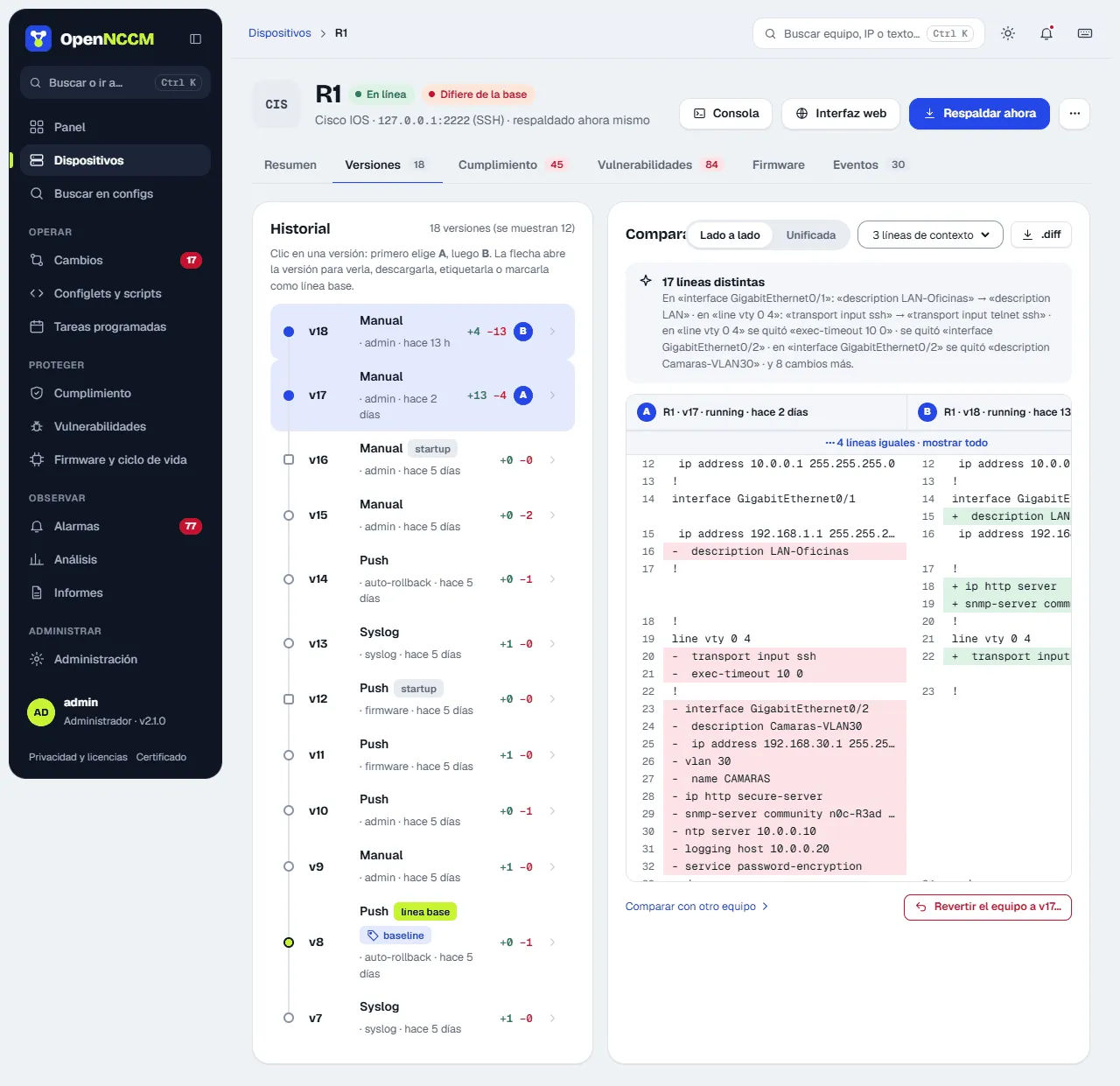
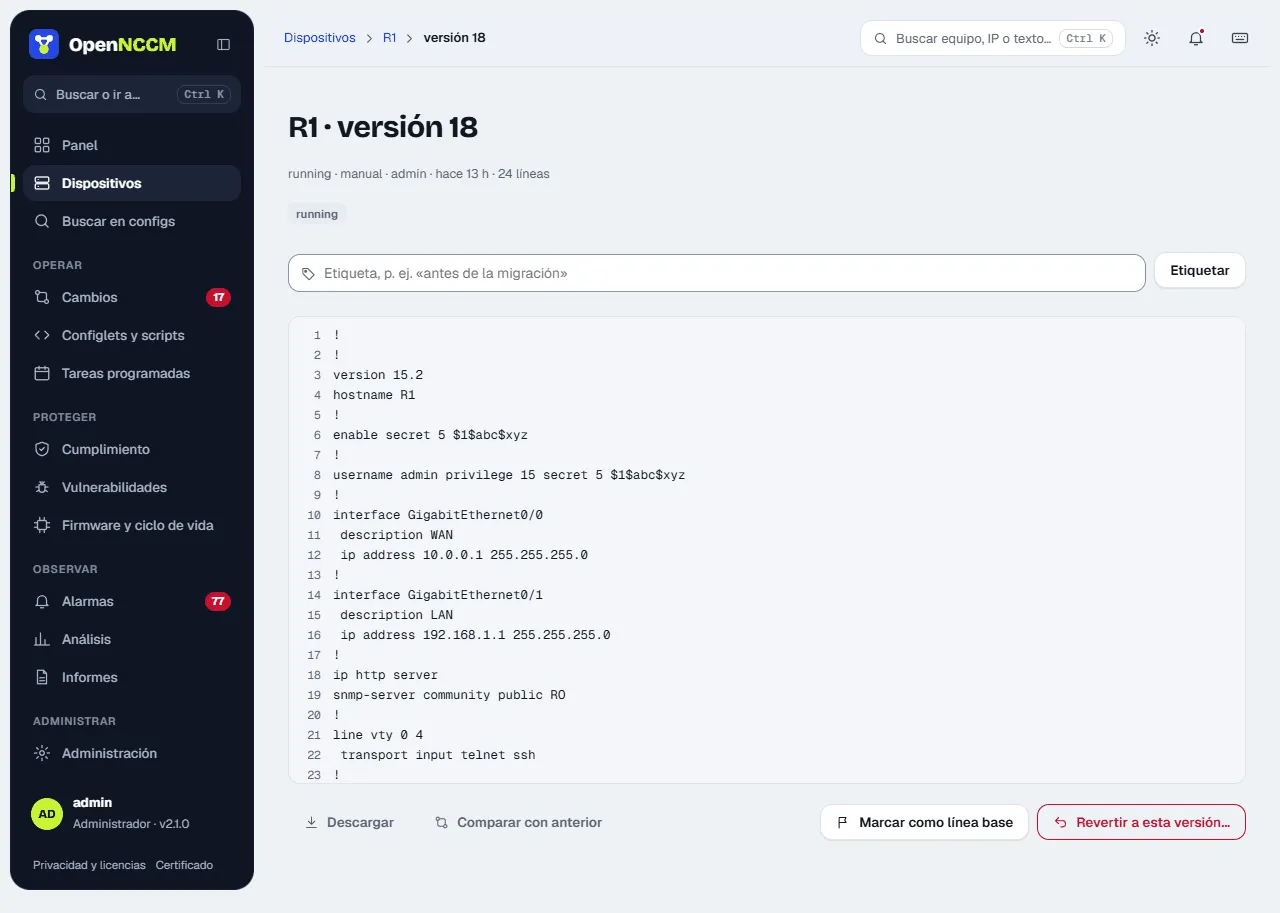
Section titled “View a version”On the device page, Versions tab, the › arrow on each version opens it in a side panel. From there you can download, compare with the previous one, tag it (for example “before migration”), mark it as baseline or roll the device back to that version.
On a MikroTik RouterOS device, the page’s … menu also offers Download .rsc (latest backup), the saved /export ready for /import, and Download the device’s .backup…. The router creates the latter on the spot (/system backup save), OpenNCCM fetches it over SFTP and deletes it from the device. You can set a password to encrypt it. The .backup includes users and passwords and can only be restored on the same model; to move the configuration to another device, use the .rsc. The credential’s user needs the ftp policy (SFTP).
Configuration comparison
Section titled “Configuration comparison”How to use it
Section titled “How to use it”- In the device’s Versions tab, click two versions on the timeline (the older one becomes A and the other B): the comparison appears beside it, in side-by-side or unified view.
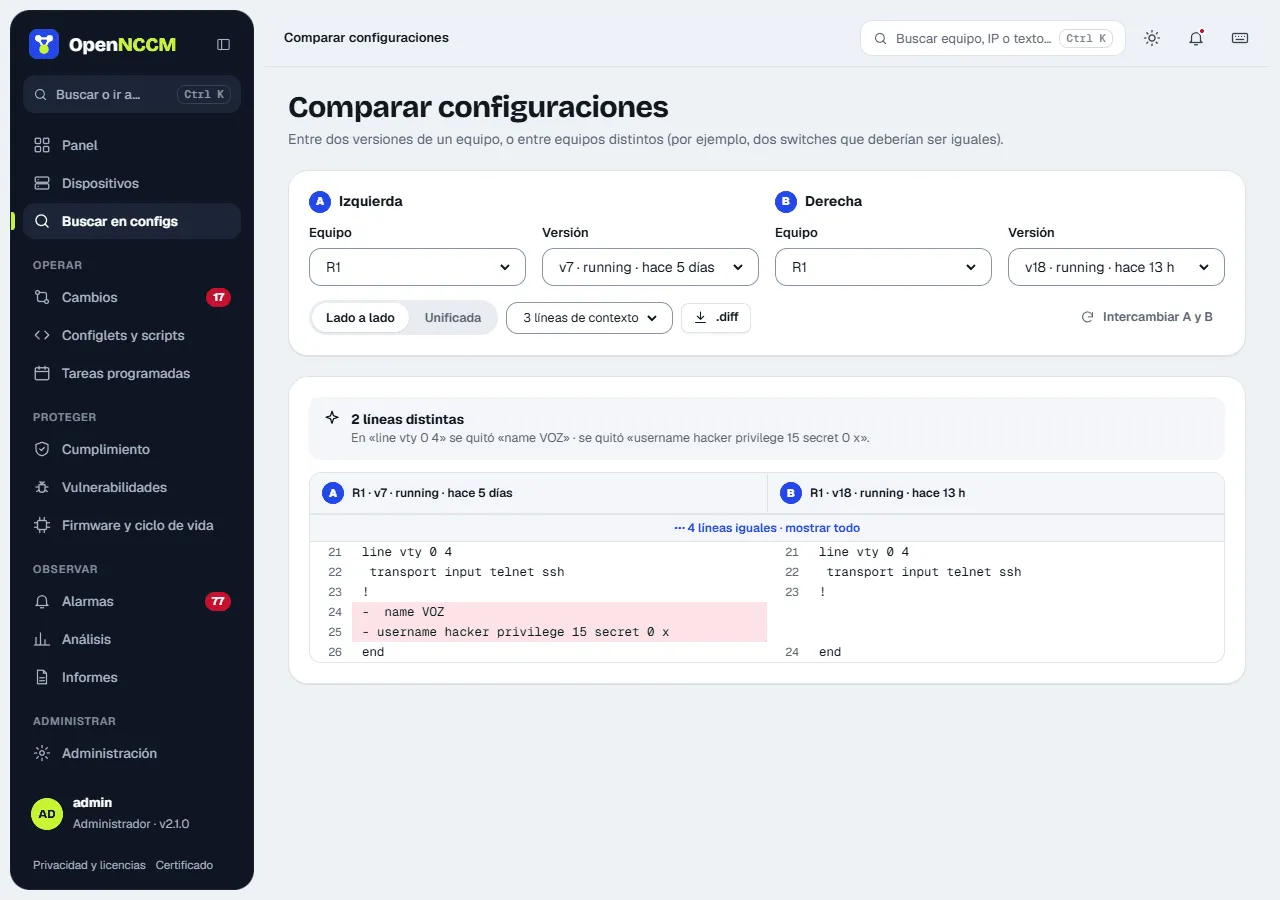
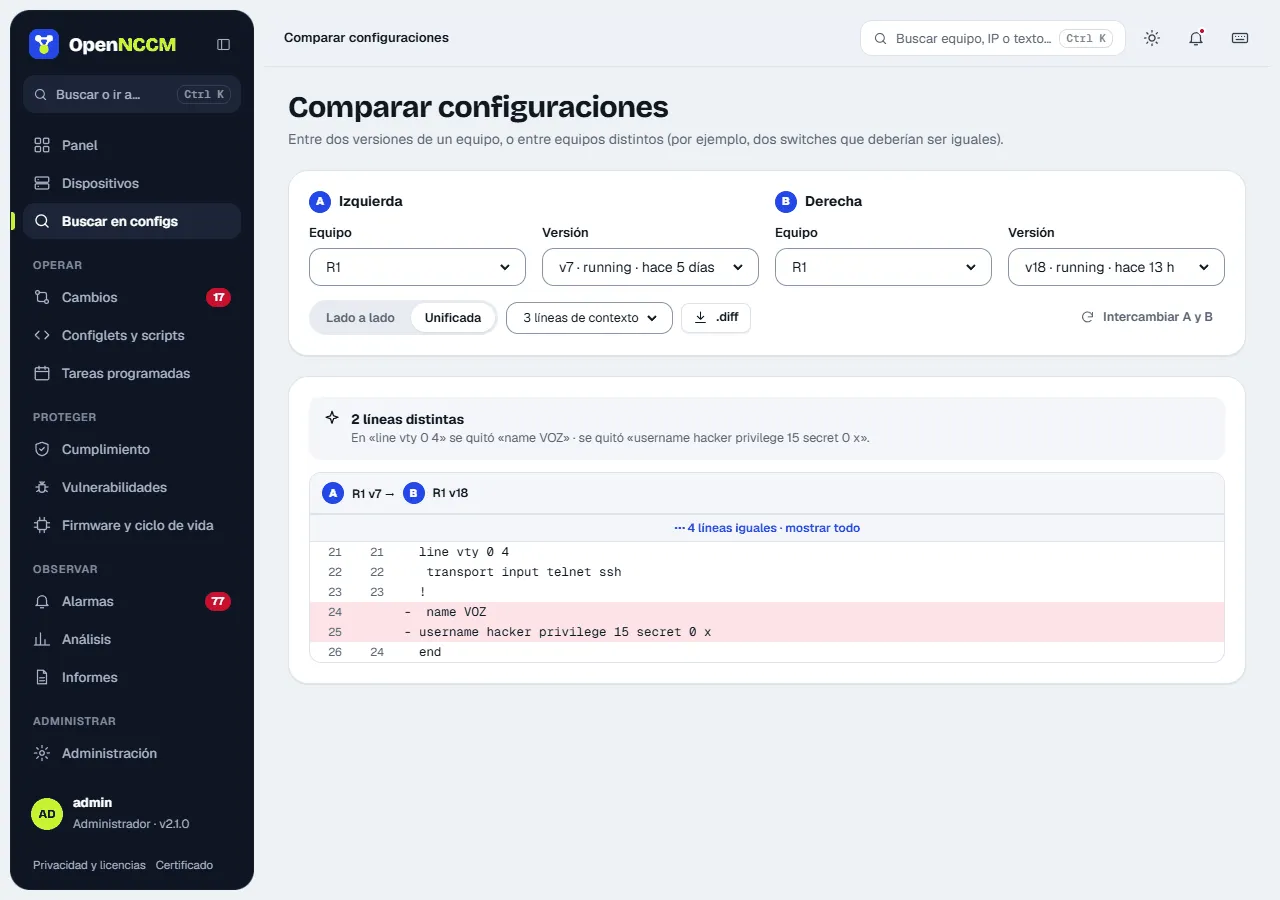
- Compare configurations (from Search configs or the device’s ⋯ menu) compares versions of different devices and lets you change the context (0, 3, 10 lines or the whole file) and swap A and B.
At the top, What changed sums up the differences in words (for example “in ‘interface Gi0/1’, ‘shutdown’ was added”). The side-by-side view shows version A on the left and B on the right, with line numbers: in red what was removed or modified, in green what was added or modified. The unified view shows the classic diff format. The n and p keys jump to the next or previous change, and the thin bar on the right marks where all of them are.